
What is Docker?
Docker as popularly called is a containerization tool for virtualization of software (not hardware, virtualization of hardware is emulation as in Virtual boxes), but for softwares.
Now docker does virtualization of software in a very fascinating manner, with the concept of docker images.
A docker image is essentially the minimal changes applied on top of your current operating system configuration in order to give you the utilities of another system configuration, which might have functionalities incompatible to be installed on your original operating system.
A container is a running instance of that image. It gets its own filesystem, network, and process tree, but shares the host kernel. That is the whole trick.
Docker Architecture
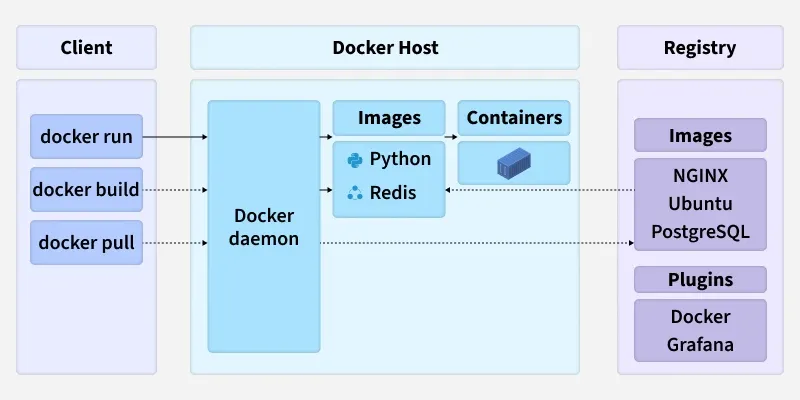
Docker uses a client server architecture. Three pieces matter.
Docker Client: the command line tool you type into. It sends your commands to the daemon.
Docker Daemon (dockerd): the background service that does the real work. It builds images, runs containers, manages networks and volumes. Under the hood it uses containerd as the high level runtime and runc as the low level OCI runtime.
Docker Registry: where images live. Docker Hub is the public one. When you run docker run nginx, if the image is not local, Docker pulls it from the registry.
Flow: you type a command, the client sends it to the daemon, the daemon does the work, the result comes back.
Essential Commands
Images
docker images                      # list local images
docker pull nginx                  # download from Docker Hub
docker rmi nginx                   # remove an image
docker image prune -f              # remove unused images
Containers
docker run nginx                          # foreground
docker run -d nginx                       # detached
docker run -it ubuntu bash                # interactive shell
docker run -d -p 8080:80 --name web nginx # map port 8080 to 80
docker run --rm hello-world               # remove on exit
Managing Containers
docker ps                    # running containers
docker ps -a                 # all containers
docker stop web              # graceful stop
docker start web             # start stopped container
docker rm web                # remove container
docker rm $(docker ps -aq)   # remove all stopped containers
Inspecting
docker logs web              # view logs
docker logs -f web           # follow logs
docker exec -it web bash     # shell inside running container
docker inspect web           # detailed JSON
docker stats                 # live resource usage
Cleanup
docker system prune -a # remove unused containers, images, networks, cache
That prune command saves you when your disk fills up. Use it carefully.
Writing a Dockerfile
A Dockerfile is a text file with instructions. Docker reads it top to bottom and builds an image layer by layer.
FROM alpine:latest

WORKDIR /app

COPY . /app

EXPOSE 8080

RUN apk update && apk add --no-cache vim

CMD ["vim", "sometext.txt"]
FROM must be first. It sets the base image. Pin a version instead of latest. latest is a moving target.
RUN executes during build and creates a layer. CMD runs when the container starts. They are completely different.
COPY copies files. ADD can also extract tarballs and fetch URLs. Stick with COPY unless you have a reason not to.
ENV sets environment variables. ARG sets build time variables that are not available at runtime.
ENTRYPOINT is like CMD but harder to override. Use it when the container must always run a specific executable.
Build:
docker build -t my_image_name -f Dockerfile .
The -t names the image. The . is the build context sent to the daemon.
Run:
docker run -it my_image_name:latest
The -it flags give you an interactive terminal. Drop the i for noninteractive mode, which means no shell access.
Linux Kernel Foundations
Docker is not a virtual machine. It calls Linux kernel features to make a normal process believe it is isolated. The two pillars are namespaces and cgroups.
Namespaces: Isolation
A namespace gives a process its own private view of a global resource.
PID namespace: the first process gets PID 1. It cannot see processes outside its namespace.
Mount namespace: the container sees its own filesystem. Mount points are isolated.
Network namespace: the container gets its own network stack, IP, routing table, and ports. Two containers can both listen on port 80 without conflict.
UTS namespace: the container gets its own hostname.
User namespace: UID and GID numbers are isolated. A process can be UID 0 inside the container but unprivileged outside. This is a major security win.
IPC namespace: shared memory and message queues are isolated.
Namespaces are not new. chroot has done filesystem isolation since the 1980s. Namespaces are a more complete version of that idea.
Cgroups: Resource Limits
Namespaces isolate what a process can see. Cgroups control what a process can use.
A control group limits CPU shares, memory, block I/O, and the number of processes. Without cgroups, one runaway container could starve the host.
When you run docker run --memory="512m" --cpus="1.5" nginx, you are setting cgroup limits. Docker creates a new cgroup per container.
Together, namespaces and cgroups make containers possible. Docker did not invent either. It packaged them into a tool developers want to use.
Containers vs Virtual Machines
A virtual machine is like a house. It has its own foundation, plumbing, and heating. It is completely self contained. But it is heavy. Each VM runs a full operating system with its own kernel. That means gigabytes of disk and minutes to boot.
A container is like an apartment. It shares the building infrastructure but has its own private space. It is lightweight, starts in seconds, and you can fit dozens on one machine.
The tradeoff is isolation. VMs are more strongly isolated because they have their own kernel. Containers share the host kernel, so a kernel exploit can break out. For most workloads, containers are isolated enough.
A Few More Things
Volumes and bind mounts: containers are ephemeral. When removed, their filesystem goes with them. Use volumes or bind mounts to persist data.
Docker networks: default bridge networks let containers talk by IP. User defined bridge networks add automatic DNS. Host networking shares the host stack. Overlay networks connect containers across multiple hosts.
Docker Compose: for multiple containers, define everything in a compose.yaml file and run docker compose up. Excellent for local development.
Security basics: start from a minimal base image. Run as an unprivileged user. Keep secrets out of image layers. Pin versions. Scan images for vulnerabilities.
References
- Dockerfile reference
- Docker Official Images
- Docker Hub
- Docker CLI reference
- Linux namespaces (LWN)
- Control groups (LWN)
- Docker security best practices
Docker seems intimidating until you use it, then it clicks. Start with docker run hello-world, pull an image, look inside with docker exec, build your own. The commands become muscle memory faster than you expect.
If you get stuck, the error messages are usually clear. And if your disk fills up, docker system prune -a will save you.